Use Steam chat with the right account
Choose the sending account and recipient, keep the trade context, and understand message outcomes.
A Steam conversation belongs to a pair: your sending account and the recipient Steam ID. The same person can have conversations with several of your accounts. Check both identities before composing a message.
Open an existing conversation
Open Steam chat and use Search conversations to find the recipient. If that recipient has conversations with several workspace accounts, use Sending account to choose the intended one.
The conversation header identifies the sending account and recipient. Use the copy controls or Steam profile when you need to compare identities. A saved name, avatar or presence indicator helps recognition; it does not prove the recipient is currently online.
Links from a trade offer identify its account and partner. If that exact pair is unavailable, choose a valid conversation or saved friend. Do not assume the app has substituted another sending account.
Understand unread state
When a conversation is open in a visible tab and you have permission to manage chat, Goldmine updates its read marker from the loaded message history. That marker belongs to the account-recipient conversation in the workspace, so it is shared with other workspace members. It is Goldmine's unread state, not proof that the recipient read an outgoing message.
If Could not update this conversation's read state appears, use Retry read state. A failure to update the marker is separate from a failure to load history or send a message. An acknowledged marker update followed by a failed conversation-list read does not mean the marker was rejected.
Start from a saved Steam friend
- Choose New conversation.
- Search for and choose the sending account.
- Search that account's saved friends and check the intended Steam ID.
- Choose Open conversation.
Friends have not synced yet is different from No established Steam friends. Check the recorded friend-list time and account connection when the expected person is missing. Opening this picker does not add a Steam friend or send a message.
Compose and check the outcome
Write in Message. Press Enter to send, or Shift+Enter for a new line. Messages have a 1,024-character limit. The emoticon picker uses the selected account's recorded Steam emoticons.
Sending requires permission to manage chat messages. If the selected account is not logged on to Steam, saved history can remain readable while sending is unavailable.
| Message outcome | What to do |
|---|---|
| Queued | The request has been accepted for processing. Wait for the recorded Steam outcome; this does not confirm delivery. |
| Delivered | Goldmine has recorded confirming Steam evidence for that send. This is not a claim that the recipient read the message. |
| Not sent or rejected | Read the specific reason, such as an unavailable session, rate limit or invalid recipient, before trying again. |
| Unknown | Check the conversation in Steam before sending again. Losing an acknowledgement does not establish that the message failed. |
A successful send followed by a failed history read can show Message accepted, but history could not be repaired. Check history; do not repeat the message just to make it appear in the page.
Recover from an unknown send
When Send outcome unknown appears, the draft remains visible and another send is held. Inspect Steam history for the exact account and recipient.
- Choose I've checked Steam history only after checking. It releases the guard so you can decide what to do; it does not prove delivery or send the draft for you.
- Choose Discard draft if you want to remove the draft without sending it.
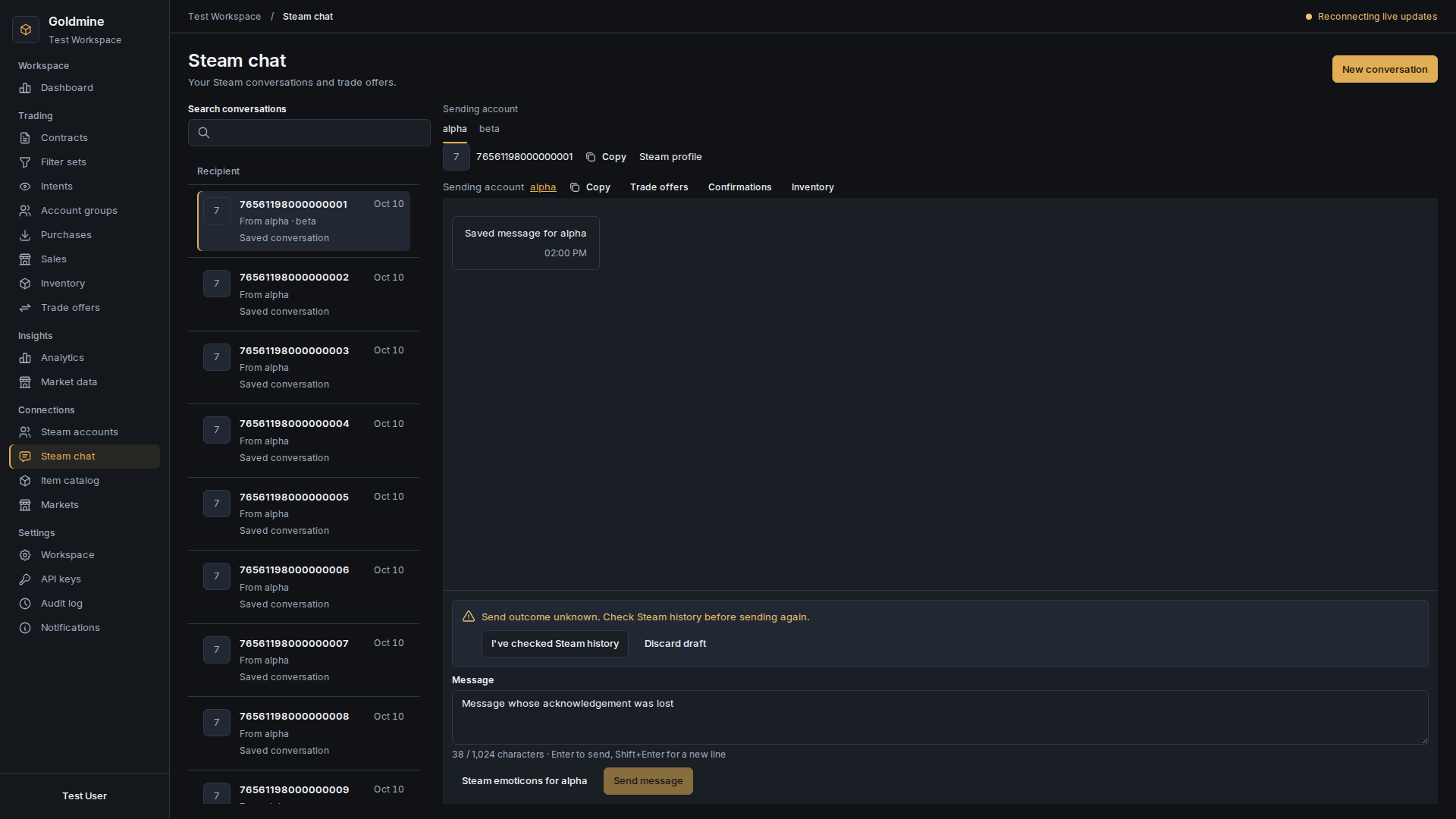
Example workspace with test data in the actual Goldmine interface. The warning shows a deliberately uncertain test send, not a message to a customer. Open the image for the full desktop view.
Unsent drafts and unresolved send warnings can survive navigation to account details and back during the same workspace session. Each account-recipient pair keeps its own draft. This is not permanent draft storage: do not rely on it surviving a reload, sign-out or access change.
Keep the trade context
Use the conversation's Trade offers, Confirmations or Inventory tools when your role permits them. Review the owning account and individual assets before any trade or confirmation action. A trade card in chat is context, not proof of a completed exchange or payment.
Continue with the trade-offer guide for offer states and partial pricing. Never send passwords, Steam Guard secrets, API keys or invitation links through a conversation.