Inspect and handle trade offers
Check the sending account, partner and both sides of an offer before taking action.
Trade offers shows incoming and outgoing Steam offers recorded for the selected workspace. Start with the account, partner and actual assets. A reference estimate is useful context, but it cannot confirm payment or decide whether an exchange is correct for you.
Find and inspect an offer
- Open Trade offers, or open the offers for a particular Steam account.
- Search by item, offer ID or partner Steam ID. Use Account name, State and Order to narrow the collection.
- Open a row to inspect the offer without leaving your place in the list.
- Check the trading account, partner Steam ID, direction, recorded state and Last observed change.
- Review Giving and Receiving from the selected trading account's perspective. Check quantities and asset identities, not just names: two items with the same finish can be different assets.
- Use Open full offer for the full detail, Open account for account context or Open on Steam to inspect the source offer when that link is available.
Returning from the linked account or conversation can restore your offer selection and list position during the same workspace session. If access or the current result changes, the offer may no longer be available. A stale record is not a replacement for a current authorized result.
Read the values correctly
A side with complete reference coverage shows an Estimated value. A side with unpriced items shows a Known subtotal and its priced-item coverage. That subtotal leaves out unpriced items; their value is unknown, not zero.
Read the source, currency and reference time alongside the number. The displayed listing estimate is not your acquisition cost, an executable bid, sale proceeds or net profit. If the reference read fails, or your role cannot view estimates, inspect the assets without treating missing prices as a zero-value exchange.
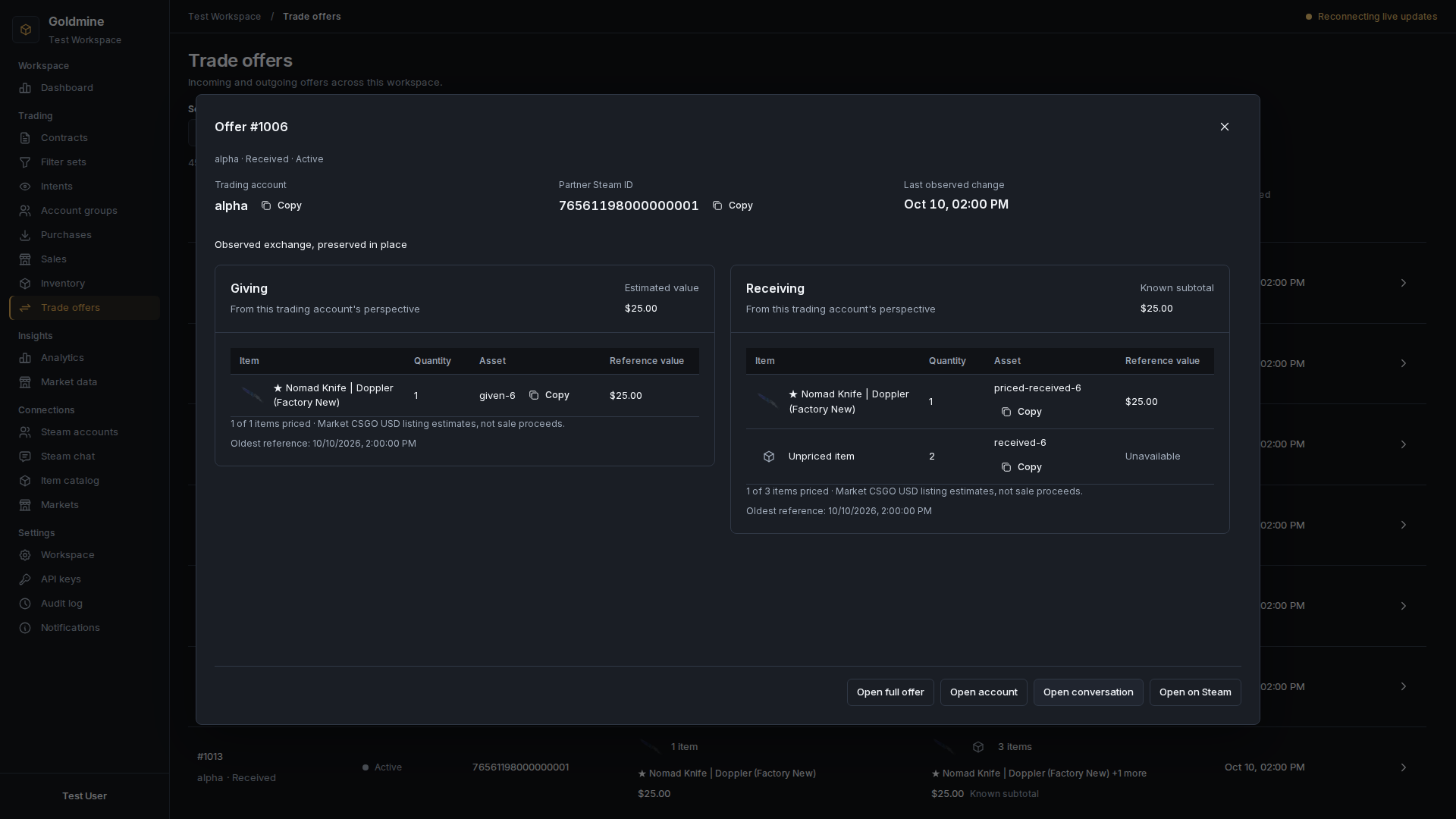
Example workspace with test data in the actual Goldmine interface. The receiving side has unpriced items, so its known subtotal is incomplete. These amounts and accounts are illustrative, not customer trades or current prices. Open the image for the full desktop view.
Take an action only on the intended offer
The full offer can expose actions when your role permits them and the offer's current state allows them:
- Accept offer or Decline offer for an active received offer.
- Cancel offer for an active offer sent by the account.
Historical observations are read only. A missing action may reflect your role, the offer state or an unverified current read.
Read the confirmation and check the account, partner and every item before confirming. Accepting can transfer assets. Steam may require mobile confirmation after a command is accepted.
Command submitted means the request was received. Wait for Steam to report the resulting offer state; it does not establish that the trade completed. If the outcome is unknown, inspect the offer on Steam before deciding whether another command is appropriate. A failed attempt to reload the offer also does not undo a submitted command.
Continue the investigation
Use Open conversation to reach the Steam chat for this account and partner. Check that pair again before sending a message.
For recorded acquisition and sale amounts, follow Purchases and Sales or marketplace history. An accepted Steam offer and a recorded financial settlement are separate evidence.